

Logging a session
Every tap is saved at once. You can leave the app, lock the phone or restart it, and the session is where you left it.
Tap Start session on Today. With more than one gym, pick the one you’re at: the app suggests the one you usually train at that day. If that gym lacks something the day needs, the sheet lists a swap for it, which applies to this session only.
The set table
Section titled “The set table”You see one exercise at a time, with a row for each set: kg (or lb), reps, RIR and a check.
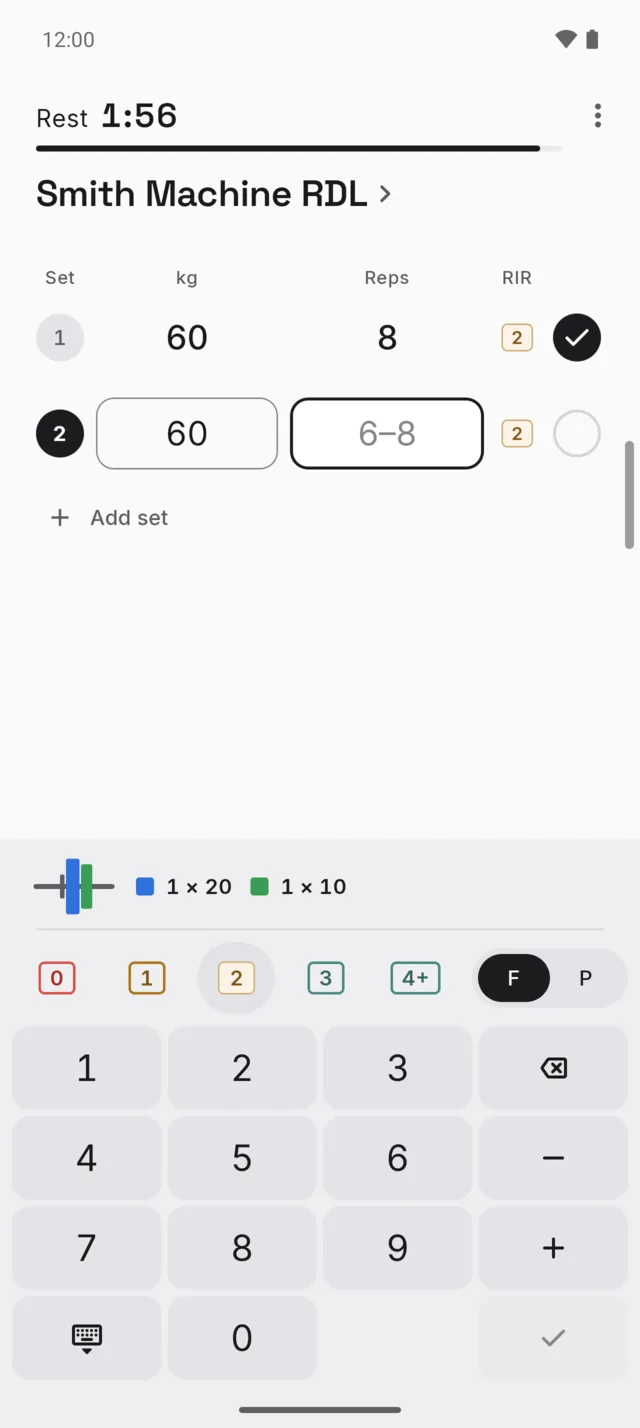
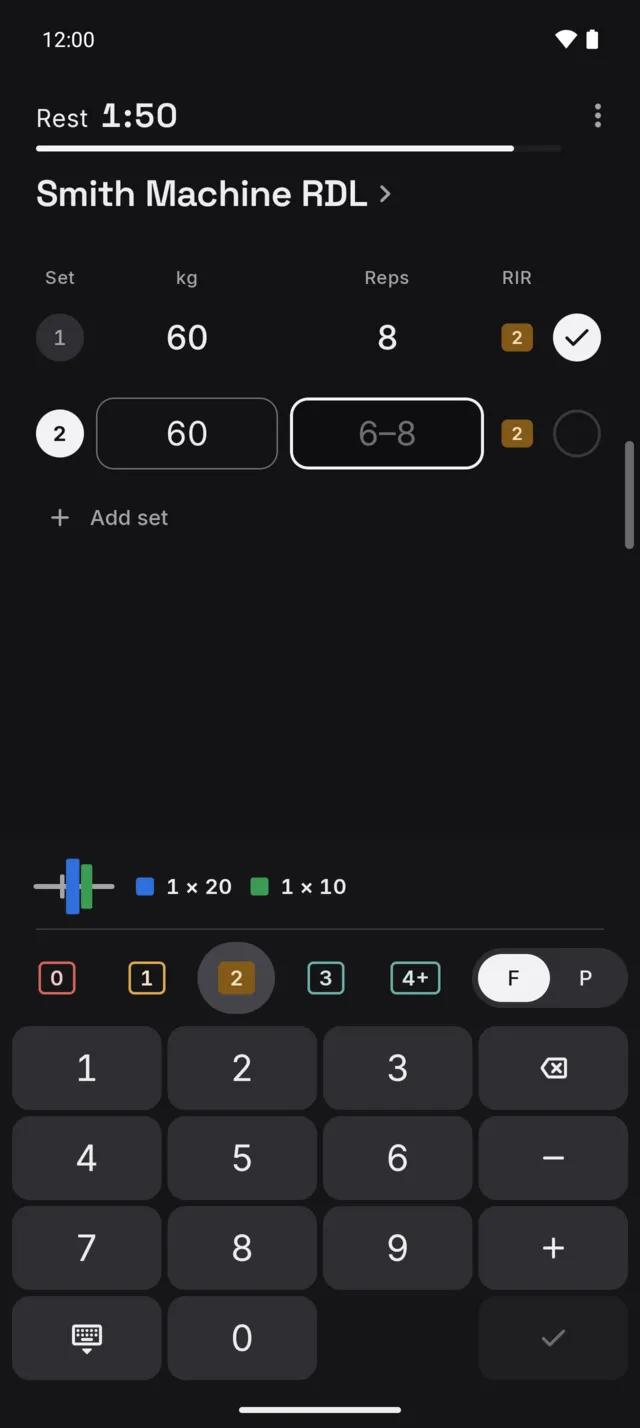
- Weight is filled in with the app’s suggestion. Change it whenever you like.
- Reps are never filled in. The empty cell shows the target, such as
6–8. - RIR, reps in reserve, is how many more reps you could have done:
0is to failure,2means two left. It starts at the target. You can clear it, but a set without it doesn’t move your suggestions. - The check logs the set and starts your rest. A set done as planned is one tap once its reps are in.
Type with the number pad at the bottom. A weight that looks like a typo, such as ten times the last set or one your equipment can’t make, is questioned before it’s logged: pick a suggested weight, or tap the check again to keep yours.
To fix a logged set, tap it, change it and tap the check. Tap the number of a set you haven’t logged to remove it or change its target, and Add set to do one more.
Partial reps
Section titled “Partial reps”Press P on the pad to split the reps cell: full reps on the left, partials on the right. Partials are recorded, but they don’t count towards your estimates.
Warm-ups
Section titled “Warm-ups”The app writes warm-up sets from your first work set’s weight, rounded to what your equipment can load. They are marked W, are optional and are never counted as training volume. For barbells and plate-loaded machines, the pad also shows which plates go on each side.
Rest starts when you log a set and runs at the top of the screen. Tap it to add or take off 15 seconds, or to end it. The phone vibrates when rest is over, also with the screen off, and a notification shows the next set. Allow notifications to see it on the lock screen.
There’s no rest between the two exercises of a superset, before a drop, or after an exercise’s last set.
Moving between exercises
Section titled “Moving between exercises”Swipe sideways, or tap the handle at the right edge, to open the exercise rail. It lists the session’s exercises with a dot for each set.
- Tap an exercise to do it now. The one you skipped comes back afterwards.
- Hold and drag to change the order for this session.
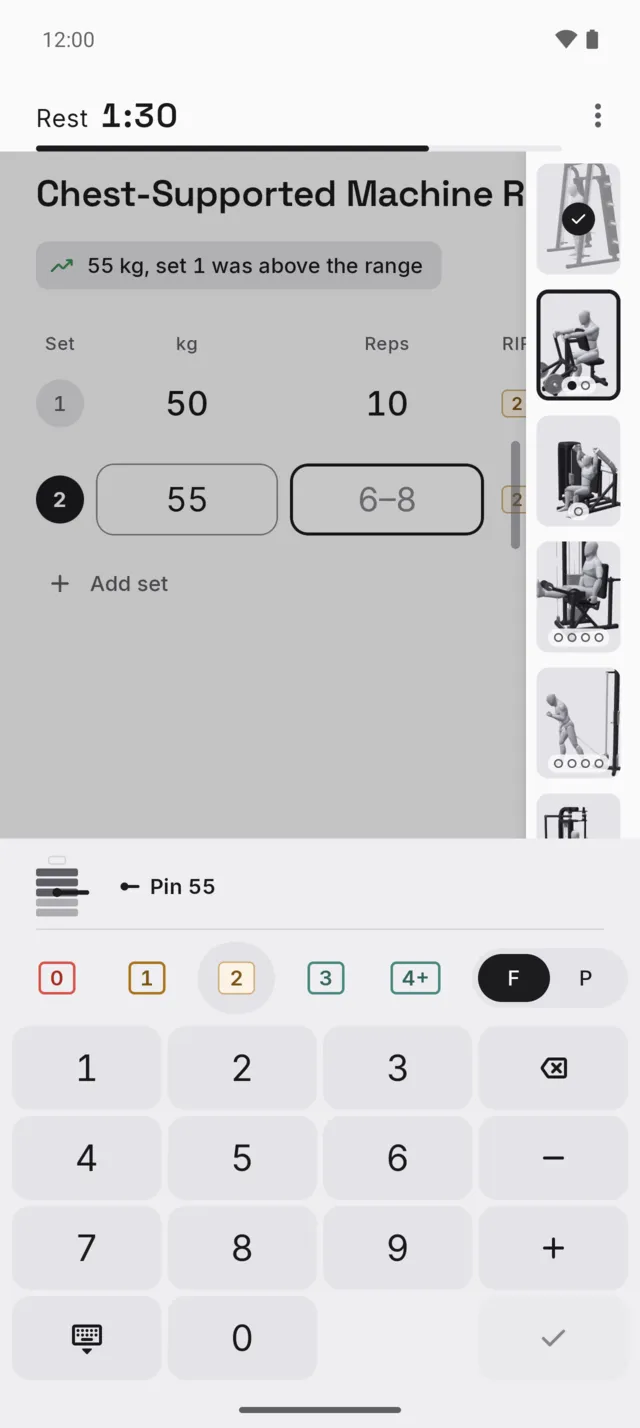
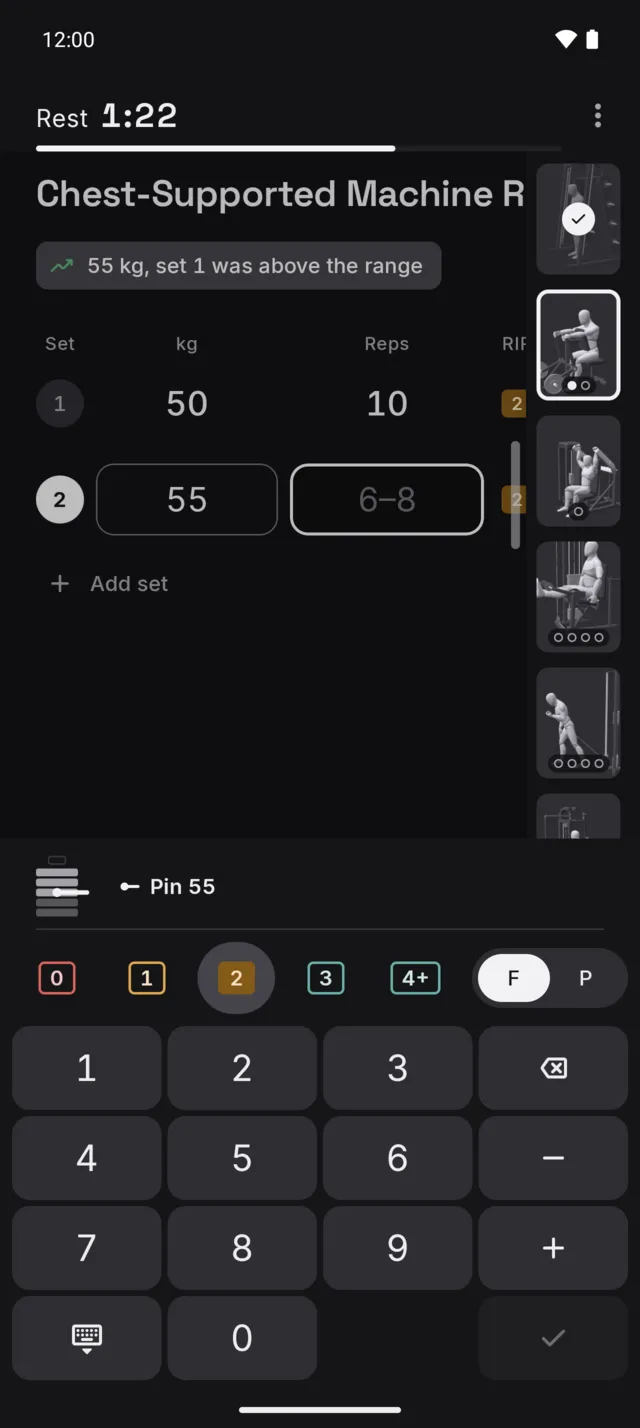
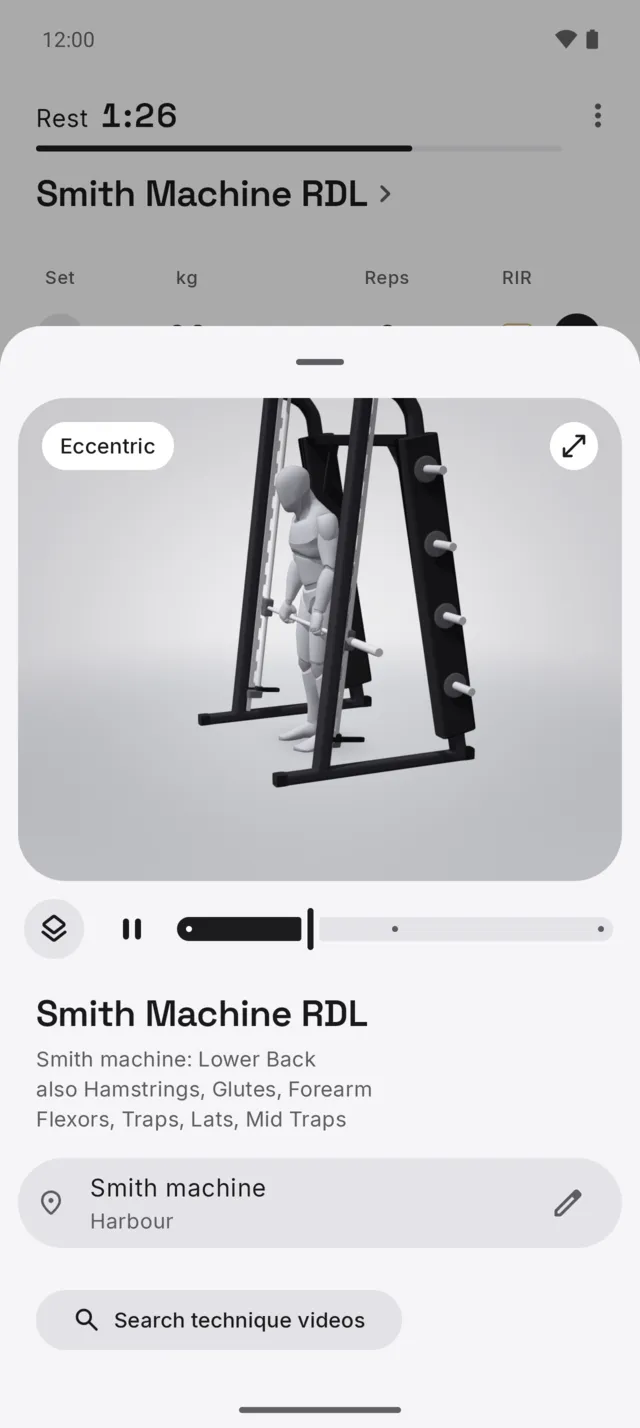
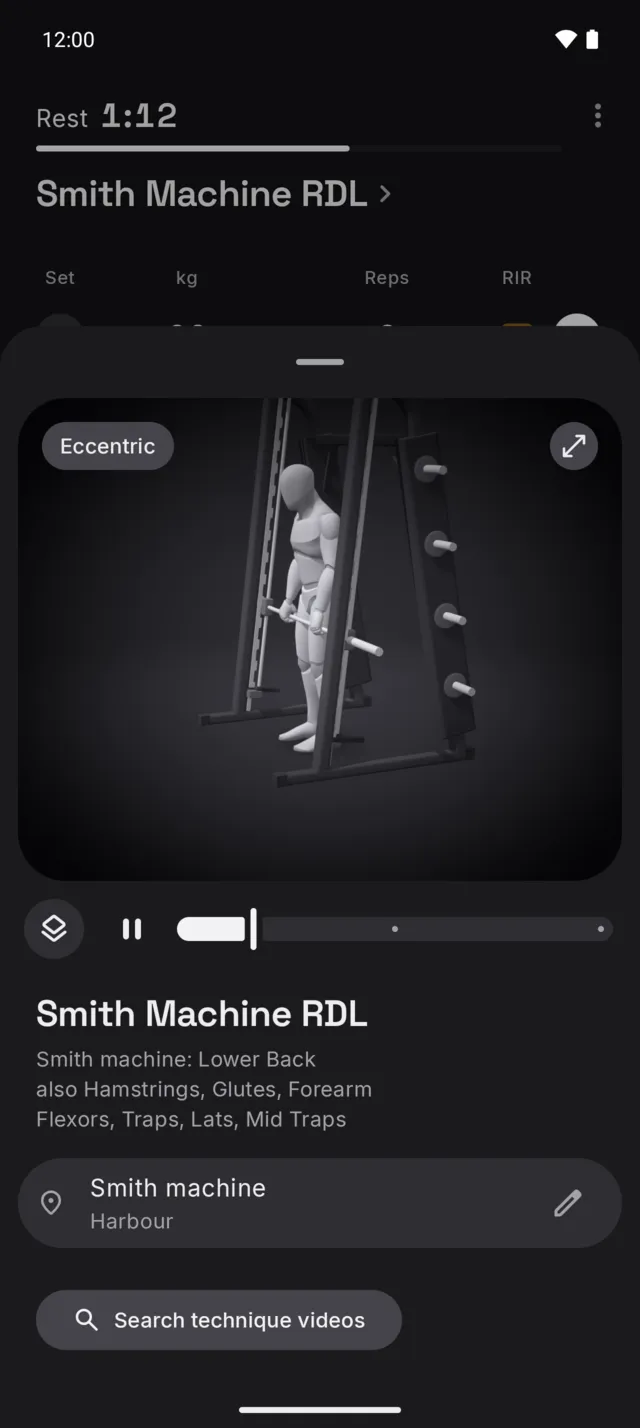
Tap an exercise’s name for its details: the technique video, how the movement looks, the muscles it works, your goal and trend, and Swap or Remove while nothing is logged on it.
An exercise on an adjustable bench has a Bench row above its sets. Tap it, then lay the phone on the backrest to read the angle, or type it.
The first time you do a machine exercise at a gym, the app asks Which machine? and remembers your answer. See Gyms and equipment.
Intensity techniques
Section titled “Intensity techniques”A set can carry one technique, from the program or picked during the session by tapping the set’s number.
| Technique | What you log |
|---|---|
| Drop set | Weight and reps for each drop; the app works out the drop weights |
| Myo-reps | The activation set, then reps for each mini-set, until one misses its target |
| Lengthened partials | Full reps, then as many partials as you can |
| Iso hold | Seconds held, with a timer, in the stretch or the contraction |
| To failure | The set, at 0 RIR |
Changing today’s plan
Section titled “Changing today’s plan”Add, remove, reorder or swap exercises and sets as you need. The changes apply to this session only. Add an exercise from the ⋮ menu at the top.
In a program’s session you can keep some of them for the rest of the block: tap Save changes in an exercise’s details and accept what it shows you. It keeps a swap, the number of sets, an RIR change shared by every set, and an exercise you added and logged. Rep targets, techniques and the order stay in the session. Remove asks whether to remove the exercise for this session or the rest of the block.
Finish
Section titled “Finish”When every planned set is logged, tap Finish session; you can also finish early from ⋮. The summary lists any records: your best estimate on an exercise, or more reps than ever at a weight. A session with nothing logged is dropped.
Without a program
Section titled “Without a program”Start session also works with no program, or beside one as Ad-hoc session. Add exercises from the library; each starts with one set, and Add set gives it more.
Afterwards
Section titled “Afterwards”History lists your finished sessions. Open one to correct a set you mistyped, and your suggestions follow. Progress shows your sets per muscle each week, each exercise’s trend, your lift goals and your bodyweight.