

Backups and moving to a new phone
Your training lives on your phone. There are two ways to keep it safe.
| Backup file | Android’s own backup | |
|---|---|---|
| What | One file you save where you like | The app’s data, in your Google account |
| When | When you tap Export backup | By Android, about once a day |
| Restore | Settings → Restore from a backup | When the app is installed on a phone signed in to that account |
Trust the file. Keep a recent one somewhere off the phone, such as Drive or your computer. Android’s backup is a safety net: it runs only when the phone is idle, charging and on Wi-Fi, and it needs “Backup by Google One” switched on in the phone’s Google settings.
What’s in a backup
Section titled “What’s in a backup”Everything you made in the app: programs and their Changes, every session (the one you’re in the middle of too), training days, gyms and equipment, the exercise library with your edits, goals, bodyweight, your training style and your settings.
Never in a backup: your Claude key and your sign-in for the connector. They are sealed to the phone, so you enter them again after a move. The connector’s account copy is not a backup, and it is never copied back to a phone.
Export
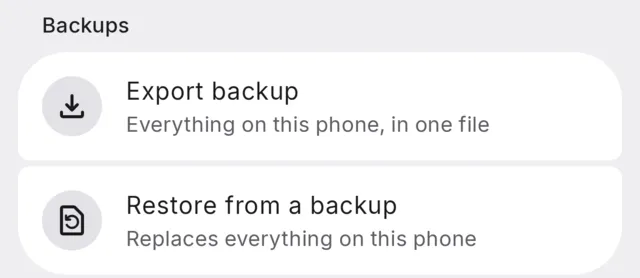
Section titled “Export”Settings → Export backup, then choose where to save it. The file is named like
overloadvector-backup-2026-11-26.json. It holds your training, so keep it somewhere private.
Restore
Section titled “Restore”Settings → Restore from a backup, then pick the file. The app asks “Replace everything on this phone?”. Restoring replaces all the data on the phone with the file’s; nothing is merged. A file the app can’t read says why, and nothing changes.
Move to a new phone
Section titled “Move to a new phone”- On the old phone, Export backup to Drive, or copy the file to your computer.
- On the new phone, install Overload Vector.
- On Setup’s first screen, tap Restore from a backup and pick the file.
- Enter your Claude key again, or Connect Claude and tap Use this phone when asked.
If you rely on Android’s backup instead, sign in to the same Google account while setting up the new phone, restore from its backup, then install Overload Vector. Android puts the data back as the app is installed.
Remember that uninstalling the app deletes its data from the phone.